Sensors

August 26,2016

Most of the android devices have built-in sensors that measure motion, orientation, and various environmental condition. The android platform supports three broad categories of sensors.

  • Motion Sensors
  • Environmental sensors
  • Position sensors

Some of the sensors are hardware based and some are software based sensors. Whatever the sensor is, android allows us to get the raw data from these sensors and use it in our application. For this android provides us with some classes.

Android provides SensorManager and Sensor classes to use the sensors in our application. In order to use sensors, first thing you need to do is to instantiate the object of SensorManager class. It can be achieved as follows.

SensorManager sMgr;
sMgr = (SensorManager)this.getSystemService(SENSOR_SERVICE);

The next thing you need to do is to instantiate the object of Sensor class by calling the getDefaultSensor() method of the SensorManager class. Its syntax is given below −

Sensor light;
light = sMgr.getDefaultSensor(Sensor.TYPE_LIGHT);

Once that sensor is declared , you need to register its listener and override two methods which are onAccuracyChanged and onSensorChanged. Its syntax is as follows −

sMgr.registerListener(this, light,SensorManager.SENSOR_DELAY_NORMAL);
public void onAccuracyChanged(Sensor sensor, int accuracy) {
}

public void onSensorChanged(SensorEvent event) {
}

Getting list of sensors supported

You can get a list of sensors supported by your device by calling the getSensorList method, which will return a list of sensors containing their name and version number and much more information. You can then iterate the list to get the information. Its syntax is given below −

sMgr = (SensorManager)this.getSystemService(SENSOR_SERVICE);
List<Sensor> list = sMgr.getSensorList(Sensor.TYPE_ALL);
for(Sensor sensor: list){
}

Apart from the these methods, there are other methods provided by the SensorManager class for managing sensors framework. These methods are listed below −

Sr.No Method & description
1 getDefaultSensor(int type)

This method get the default sensor for a given type.

2 getOrientation(float[] R, float[] values)

This method returns a description of the current primary clip on the clipboard but not a copy of its data.

3 getInclination(float[] I)

This method computes the geomagnetic inclination angle in radians from the inclination matrix.

4 registerListener(SensorListener listener, int sensors, int rate)

This method registers a listener for the sensor

5 unregisterListener(SensorEventListener listener, Sensor sensor)

This method unregisters a listener for the sensors with which it is registered.

6 getOrientation(float[] R, float[] values)

This method computes the device’s orientation based on the rotation matrix.

7 getAltitude(float p0, float p)

This method computes the Altitude in meters from the atmospheric pressure and the pressure at sea level.

SDK Manager

August 25,2016

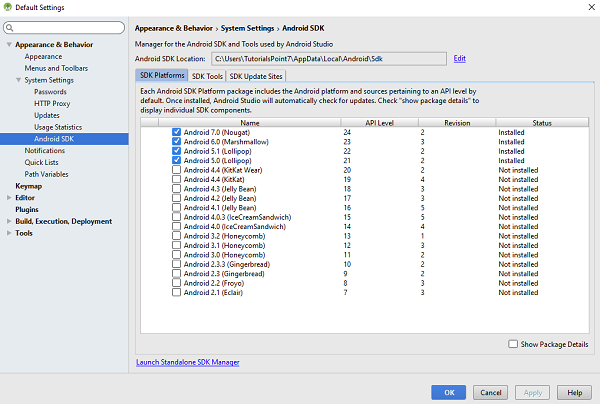
To download and install latest android APIs and development tools from the internet, android provide us with android SDK manager. Android SDK Manager separates the APIs, tools and different platforms into different packages which you can download.

Android SDK manager comes with the Android SDK bundle. You can’t download it separately. You can download the android sdk from here.

Running Android SDK Manager

Once downloaded, you can launch Android SDK Manager in one of the following ways −

  • Click tools->Android-> SDK Manager option in Eclipse.
  • Double Click on the SDK Manager.exe file in the Android SDK folder.

When it runs you will see the following screen −

Android SDK Manager Tutorial

You can select which package you want to download by selecting the checkbox and then click Install to install those packages. By default SDK Manager keeps it up to date with latest APIs and other packages.

Once you download the SDK, following packages are available but first three are necessary to run your SDK and others are recommended.

Recommended Packages

Sr.No Package & Description
1 SDK Tools

This is necessary package to run your SDK.

2 SDK Platform-tools

This package will be installed once when you first run the SDK manager.

3 SDK Platform

At least one platform must be installed in your environment to run your application.

4 System Image

It’s a good practice to download system images for all of the android versions so you can test your app on them with the Android Emulator.

5 SDK Samples

This will give you some sample codes to learn about android.

Push Notifications

August 24,2016

A notification is a message you can display to the user outside of your application’s normal UI. You can create your own notifications in android very easily.

Android provides NotificationManager class for this purpose. In order to use this class, you need to instantiate an object of this class by requesting the android system through getSystemService() method. Its syntax is given below −

NotificationManager NM;
NM=(NotificationManager)getSystemService(Context.NOTIFICATION_SERVICE);

After that you will create Notification through Notification class and specify its attributes such as icon,title and time e.t.c. Its syntax is given below −

Notification notify = new Notification(android.R.drawable.stat_notify_more,title,System.currentTimeMillis());

The next thing you need to do is to create a PendingIntent by passing context and intent as a parameter. By giving a PendingIntent to another application, you are granting it the right to perform the operation you have specified as if the other application was yourself.

PendingIntent pending = PendingIntent.getActivity(getApplicationContext(), 0, new Intent(),0);

The last thing you need to do is to call setLatestEventInfo method of the Notification class and pass the pending intent along with notification subject and body details. Its syntax is given below. And then finally call the notify method of the NotificationManager class.

notify.setLatestEventInfo(getApplicationContext(), subject, body,pending);
NM.notify(0, notify);		

Apart from the notify method, there are other methods available in the NotificationManager class. They are listed below −

Sr.No Method & description
1 cancel(int id)

This method cancel a previously shown notification.

2 cancel(String tag, int id)

This method also cancel a previously shown notification.

3 cancelAll()

This method cancel all previously shown notifications.

4 notify(int id, Notification notification)

This method post a notification to be shown in the status bar.

5 notify(String tag, int id, Notification notification)

This method also Post a notification to be shown in the status bar.


Connecting MYSQL

August 23,2016

Connecting Via Get Method

There are two ways to connect to MYSQL via PHP page. The first one is called Get method. We will use HttpGet and HttpClient class to connect. Their syntax is given below −

URL url = new URL(link);
HttpClient client = new DefaultHttpClient();
HttpGet request = new HttpGet();
request.setURI(new URI(link));

After that you need to call execute method of HttpClient class and receive it in a HttpResponse object. After that you need to open streams to receive the data.

HttpResponse response = client.execute(request);
BufferedReader in = new BufferedReader
(new InputStreamReader(response.getEntity().getContent()));

Connecting Via Post Method

In the Post method, the URLEncoder,URLConnection class will be used. The urlencoder will encode the information of the passing variables. It’s syntax is given below −

URL url = new URL(link);
String data  = URLEncoder.encode("username", "UTF-8") 
+ "=" + URLEncoder.encode(username, "UTF-8");
data += "&" + URLEncoder.encode("password", "UTF-8") 
+ "=" + URLEncoder.encode(password, "UTF-8");
URLConnection conn = url.openConnection();

The last thing you need to do is to write this data to the link. After writing, you need to open stream to receive the responded data.

OutputStreamWriter wr = new OutputStreamWriter(conn.getOutputStream()); 
wr.write( data ); 
BufferedReader reader = new BufferedReader(new 
InputStreamReader(conn.getInputStream()));

Example

The below example is a complete example of connecting your android application with MYSQL database via PHP page. It creates a basic application that allows you to login using GET and POST method.

PHP – MYSQL part

In this example a database with the name of temp has been created at 000webhost.com. In that database, a table has been created with the name of table1. This table has three fields. (Username, Password, Role). The table has only one record which is (“admin”,”admin”,”administrator”).

The php page has been given below which takes parameters by post method.

<?php
   $con=mysqli_connect("mysql10.000webhost.com","username","password","db_name");

   if (mysqli_connect_errno($con)) {
      echo "Failed to connect to MySQL: " . mysqli_connect_error();
   }
	
   $username = $_POST['username'];
   $password = $_POST['password'];
   $result = mysqli_query($con,"SELECT Role FROM table1 where 
   Username='$username' and Password='$password'");
   $row = mysqli_fetch_array($result);
   $data = $row[0];

   if($data){
      echo $data;
   }
	
   mysqli_close($con);
?>

Android Part

To experiment with this example , you need to run this on an actual device on which wifi internet is connected.

Steps Description
1 You will use Android studio IDE to create an Android application and name it as PHPMYSQL under a package com.example.phpmysql.
2 Modify src/MainActivity.java file to add Activity code.
3 Create src/SiginActivity.java file to add PHPMYSQL code.
4 Modify layout XML file res/layout/activity_main.xml add any GUI component if required.
5 Modify res/values/string.xml file and add necessary string components.
6 Modify AndroidManifest.xml to add necessary permissions.
7 Run the application and choose a running android device and install the application on it and verify the results.


PHP/MYSql

August 20,2016

MYSQL is used as a database at the webserver and PHP is used to fetch data from the database. Our application will communicate with the PHP page with necessary parameters and PHP will contact MYSQL database and will fetch the result and return the results to us.

PHP – MYSQL

Creating Database

MYSQL database can be created easily using this simple script. The CREATE DATABASE statement creates the database.

<?php
   $con=mysqli_connect("example.com","username","password");
   $sql="CREATE DATABASE my_db";
   if (mysqli_query($con,$sql)) {
      echo "Database my_db created successfully";
   }
?>

Creating Tables

Once database is created, its time to create some tables in the database. The CREATE TABLE statement creates the database.

<?php
   $con=mysqli_connect("example.com","username","password","my_db");
   $sql="CREATE TABLE table1(Username CHAR(30),Password CHAR(30),Role CHAR(30))";
   if (mysqli_query($con,$sql)) {
      echo "Table have been created successfully";
   }
?>

Inserting Values in tables

When the database and tables are created. Now its time to insert some data into the tables. The Insert Into statement creates the database.

<?php
   $con=mysqli_connect("example.com","username","password","my_db");
   $sql="INSERT INTO table1 (FirstName, LastName, Age) VALUES ('admin', 'admin','adminstrator')";
   if (mysqli_query($con,$sql)) {
      echo "Values have been inserted successfully";
   }
?>

PHP – GET and POST methods

PHP is also used to fetch the record from the mysql database once it is created. In order to fetch record some information must be passed to PHP page regarding what record to be fetched.

The first method to pass information is through GET method in which $_GET command is used. The variables are passed in the url and the record is fetched. Its syntax is given below −

<?php
   $con=mysqli_connect("example.com","username","password","database name");

   if (mysqli_connect_errno($con)) {
      echo "Failed to connect to MySQL: " . mysqli_connect_error();
   }

   $username = $_GET['username'];
   $password = $_GET['password'];
   $result = mysqli_query($con,"SELECT Role FROM table1 where Username='$username' 
      and Password='$password'");
   $row = mysqli_fetch_array($result);
   $data = $row[0];

   if($data){
      echo $data;
   }
   mysqli_close($con);
?>

The second method is to use POST method. The only change in the above script is to replace $_GET with $_POST. In Post method, the variables are not passed through URL.

Network Connection

August 19,2016

Checking Network Connection

Before you perform any network operations, you must first check that are you connected to that network or internet e.t.c. For this android provides ConnectivityManager class. You need to instantiate an object of this class by calling getSystemService() method. Its syntax is given below −

ConnectivityManager check = (ConnectivityManager) 
this.context.getSystemService(Context.CONNECTIVITY_SERVICE);

Once you instantiate the object of ConnectivityManager class, you can use getAllNetworkInfo method to get the information of all the networks. This method returns an array of NetworkInfo. So you have to receive it like this.

NetworkInfo[] info = check.getAllNetworkInfo();

The last thing you need to do is to check Connected State of the network. Its syntax is given below −

for (int i = 0; i<info.length; i++){
   if (info[i].getState() == NetworkInfo.State.CONNECTED){
      Toast.makeText(context, "Internet is connected
      Toast.LENGTH_SHORT).show();
   }
}

Apart from this connected states, there are other states a network can achieve. They are listed below −

Sr.No State
1 Connecting
2 Disconnected
3 Disconnecting
4 Suspended
5 Unknown

Performing Network Operations

After checking that you are connected to the internet, you can perform any network operation. Here we are fetching the html of a website from a url.

Android provides HttpURLConnection and URL class to handle these operations. You need to instantiate an object of URL class by providing the link of website. Its syntax is as follows −

String link = "http://www.google.com";
URL url = new URL(link);

After that you need to call openConnection method of url class and receive it in a HttpURLConnection object. After that you need to call the connect method of HttpURLConnection class.

HttpURLConnection conn = (HttpURLConnection) url.openConnection();
conn.connect();

And the last thing you need to do is to fetch the HTML from the website. For this you will use InputStream and BufferedReader class. Its syntax is given below −

InputStream is = conn.getInputStream();
BufferedReader reader = new BufferedReader(new InputStreamReader(is, "UTF-8"));
String webPage = "",data="";

while ((data = reader.readLine()) != null){
   webPage += data + "\n";
}

Apart from this connect method, there are other methods available in HttpURLConnection class. They are listed below −

Sr.No Method & description
1 disconnect()

This method releases this connection so that its resources may be either reused or closed

2 getRequestMethod()

This method returns the request method which will be used to make the request to the remote HTTP server

3 getResponseCode()

This method returns response code returned by the remote HTTP server

4 setRequestMethod(String method)

This method Sets the request command which will be sent to the remote HTTP server

5 usingProxy()

This method returns whether this connection uses a proxy server or not

Navigation

August 18,2016

Providing Up Navigation

The up navigation will allow our application to move to previous activity from the next activity. It can be done like this.

To implement Up navigation, the first step is to declare which activity is the appropriate parent for each activity. You can do it by specifying parentActivityName attribute in an activity. Its syntax is given below −

android:parentActivityName = "com.example.test.MainActivity" 

After that you need to call setDisplayHomeAsUpEnabled method of getActionBar() in the onCreate method of the activity. This will enable the back button in the top action bar.

getActionBar().setDisplayHomeAsUpEnabled(true);

The last thing you need to do is to override onOptionsItemSelected method. when the user presses it, your activity receives a call to onOptionsItemSelected(). The ID for the action is android.R.id.home.Its syntax is given below −

public boolean onOptionsItemSelected(MenuItem item) {
   
   switch (item.getItemId()) {
      case android.R.id.home:
      NavUtils.navigateUpFromSameTask(this);
      return true;
   }	
}

Handling device back button

Since you have enabled your back button to navigate within your application, you might want to put the application close function in the device back button.

It can be done by overriding onBackPressed and then calling moveTaskToBack and finish method. Its syntax is given below −

@Override
public void onBackPressed() {
   moveTaskToBack(true); 
   MainActivity2.this.finish();
}

Apart from this setDisplayHomeAsUpEnabled method, there are other methods available in ActionBar API class. They are listed below −

Sr.No Method & description
1 addTab(ActionBar.Tab tab, boolean setSelected)

This method adds a tab for use in tabbed navigation mode

2 getSelectedTab()

This method returns the currently selected tab if in tabbed navigation mode and there is at least one tab present

3 hide()

This method hide the ActionBar if it is currently showing

4 removeAllTabs()

This method remove all tabs from the action bar and deselect the current tab

5 selectTab(ActionBar.Tab tab)

This method select the specified tab

Example

The below example demonstrates the use of Navigation. It crates a basic application that allows you to navigate within your application.

To experiment with this example, you need to run this on an actual device or in an emulator.

Steps Description
1 You will use Android studio to create an Android application under a package com.example.sairamkrishna.myapplication.
2 Modify src/MainActivity.java file to add Activity code.
3 Create a new activity with the name of second_main.java and edit it to add activity code.
4 Modify layout XML file res/layout/activity_main.xml add any GUI component if required.
5 Modify layout XML file res/layout/second.xml add any GUI component if required.
6 Modify AndroidManifest.xml to add necessary code.
7 Run the application and choose a running android device and install the application on it and verify the results.

Loading Spinner

August 17,2016

Spinner is used to display progress of those tasks whose total time of completion is unknown. In order to use that, you just need to define it in the xml like this.

<ProgressBar
   android:id="@+id/progressBar1"
   style="?android:attr/progressBarStyleLarge"
   android:layout_width="wrap_content"
   android:layout_height="wrap_content"
   android:layout_centerHorizontal="true" />

After defining it in xml, you have to get its reference in java file through ProgressBar class. Its syntax is given below −

private ProgressBar spinner;
spinner = (ProgressBar)findViewById(R.id.progressBar1);

After that you can make its disappear , and bring it back when needed through setVisibility Method. Its syntax is given below −

spinner.setVisibility(View.GONE);
spinner.setVisibility(View.VISIBLE);

Apart from these Methods, there are other methods defined in the ProgressBar class , that you can use to handle spinner more effectively.

Sr.No Method & description
1 isIndeterminate()

Indicate whether this progress bar is in indeterminate mode

2 postInvalidate()

Cause an invalidate to happen on a subsequent cycle through the event loop

3 setIndeterminate(boolean indeterminate)

Change the indeterminate mode for this progress bar

4 invalidateDrawable(Drawable dr)

Invalidates the specified Drawable

5 incrementSecondaryProgressBy(int diff)

Increase the progress bar’s secondary progress by the specified amount

6 getProgressDrawable()

Get the drawable used to draw the progress bar in progress mode

Google Map

August 16,2016

Google Map – Layout file

Now you have to add the map fragment into xml layout file. Its syntax is given below −

<fragment
   android:id="@+id/map"
   android:name="com.google.android.gms.maps.MapFragment"
   android:layout_width="match_parent"
   android:layout_height="match_parent"/>

Google Map – AndroidManifest file

The next thing you need to do is to add some permissions along with the Google Map API key in the AndroidManifest.XML file. Its syntax is given below −

<!--Permissions-->

<uses-permission android:name="android.permission.ACCESS_NETWORK_STATE" />
<uses-permission android:name="android.permission.INTERNET" />
<uses-permission android:name="com.google.android.providers.gsf.permission.
   READ_GSERVICES" />
<uses-permission android:name="android.permission.WRITE_EXTERNAL_STORAGE" />

<!--Google MAP API key-->

<meta-data
   android:name="com.google.android.maps.v2.API_KEY"
   android:value="AIzaSyDKymeBXNeiFWY5jRUejv6zItpmr2MVyQ0" />

Customizing Google Map

You can easily customize google map from its default view , and change it according to your demand.

Adding Marker

You can place a maker with some text over it displaying your location on the map. It can be done by via addMarker() method. Its syntax is given below −

final LatLng TutorialsPoint = new LatLng(21 , 57);
Marker TP = googleMap.addMarker(new MarkerOptions()
   .position(TutorialsPoint).title("TutorialsPoint"));

Channing Map Type

You can also change the type of the MAP. There are four different types of map and each give different view of the map. These types are Normal,Hybrid,Satellite and terrain. You can use them as below

googleMap.setMapType(GoogleMap.MAP_TYPE_NORMAL);
googleMap.setMapType(GoogleMap.MAP_TYPE_HYBRID);
googleMap.setMapType(GoogleMap.MAP_TYPE_SATELLITE);
googleMap.setMapType(GoogleMap.MAP_TYPE_TERRAIN);

Enable/Disable zoom

You can also enable or disable the zoom gestures in the map by calling the setZoomControlsEnabled(boolean) method. Its syntax is given below −

googleMap.getUiSettings().setZoomGesturesEnabled(true);

Apart from these customization, there are other methods available in the GoogleMap class , that helps you more customize the map. They are listed below −

Sr.No Method & description
1 addCircle(CircleOptions options)

This method add a circle to the map

2 addPolygon(PolygonOptions options)

This method add a polygon to the map

3 addTileOverlay(TileOverlayOptions options)

This method add tile overlay to the map

4 animateCamera(CameraUpdate update)

This method Moves the map according to the update with an animation

5 clear()

This method removes everything from the map.

6 getMyLocation()

This method returns the currently displayed user location.

7 moveCamera(CameraUpdate update)

This method repositions the camera according to the instructions defined in the update

8 setTrafficEnabled(boolean enabled)

This method Toggles the traffic layer on or off.

9 snapshot(GoogleMap.SnapshotReadyCallback callback)

This method Takes a snapshot of the map

10 stopAnimation()

This method stops the camera animation if there is one in progress

Android Gestures

August 15,2016

Android provides special types of touch screen events such as pinch , double tap, scrolls , long presses and flinch. These are all known as gestures.

Android provides GestureDetector class to receive motion events and tell us that these events correspond to gestures or not. To use it , you need to create an object of GestureDetector and then extend another class with GestureDetector.SimpleOnGestureListener to act as a listener and override some methods. Its syntax is given below −

GestureDetector myG;
myG = new GestureDetector(this,new Gesture());
   
class Gesture extends GestureDetector.SimpleOnGestureListener{
   public boolean onSingleTapUp(MotionEvent ev) {
   }
   
   public void onLongPress(MotionEvent ev) {
   }
   
   public boolean onScroll(MotionEvent e1, MotionEvent e2, float distanceX,
   float distanceY) {
   }
   
   public boolean onFling(MotionEvent e1, MotionEvent e2, float velocityX,
   float velocityY) {
   }
}

Handling Pinch Gesture

Android provides ScaleGestureDetector class to handle gestures like pinch e.t.c. In order to use it, you need to instantiate an object of this class. Its syntax is as follow −

ScaleGestureDetector SGD;
SGD = new ScaleGestureDetector(this,new ScaleListener());

The first parameter is the context and the second parameter is the event listener. We have to define the event listener and override a function OnTouchEvent to make it working. Its syntax is given below −

public boolean onTouchEvent(MotionEvent ev) {
   SGD.onTouchEvent(ev);
   return true;
}

private class ScaleListener extends ScaleGestureDetector.SimpleOnScaleGestureListener {
   @Override
   public boolean onScale(ScaleGestureDetector detector) {
      float scale = detector.getScaleFactor();
      return true;
   }
}

Apart from the pinch gestures , there are other methods available that notify more about touch events. They are listed below −

Sr.No Method & description
1 getEventTime()

This method get the event time of the current event being processed..

2 getFocusX()

This method get the X coordinate of the current gesture’s focal point.

3 getFocusY()

This method get the Y coordinate of the current gesture’s focal point.

4 getTimeDelta()

This method return the time difference in milliseconds between the previous accepted scaling event and the current scaling event.

5 isInProgress()

This method returns true if a scale gesture is in progress..

6 onTouchEvent(MotionEvent event)

This method accepts MotionEvents and dispatches events when appropriate.