Location Based Services

July 29,2016

Android location APIs make it easy for you to build location-aware applications, without needing to focus on the details of the underlying location technology.

The Location Object

The Location object represents a geographic location which can consist of a latitude, longitude, time stamp, and other information such as bearing, altitude and velocity. There are following important methods which you can use with Location object to get location specific information −

Sr.No. Method & Description
1 float distanceTo(Location dest)

Returns the approximate distance in meters between this location and the given location.

2 float getAccuracy()

Get the estimated accuracy of this location, in meters.

3 double getAltitude()

Get the altitude if available, in meters above sea level.

4 float getBearing()

Get the bearing, in degrees.

5 double getLatitude()

Get the latitude, in degrees.

6 double getLongitude()

Get the longitude, in degrees.

7 float getSpeed()

Get the speed if it is available, in meters/second over ground.

8 boolean hasAccuracy()

True if this location has an accuracy.

9 boolean hasAltitude()

True if this location has an altitude.

10 boolean hasBearing()

True if this location has a bearing.

11 boolean hasSpeed()

True if this location has a speed.

12 void reset()

Clears the contents of the location.

13 void setAccuracy(float accuracy)

Set the estimated accuracy of this location, meters.

14 void setAltitude(double altitude)

Set the altitude, in meters above sea level.

15 void setBearing(float bearing)

Set the bearing, in degrees.

16 void setLatitude(double latitude)

Set the latitude, in degrees.

17 void setLongitude(double longitude)

Set the longitude, in degrees.

18 void setSpeed(float speed)

Set the speed, in meters/second over ground.

19 String toString()

Returns a string containing a concise, human-readable description of this object.

Get the Current Location

To get the current location, create a location client which is LocationClient object, connect it to Location Services using connect() method, and then call its getLastLocation() method. This method returns the most recent location in the form of Location object that contains latitude and longitude coordinates and other information as explained above. To have location based functionality in your activity, you will have to implement two interfaces −

  • GooglePlayServicesClient.ConnectionCallbacks
  • GooglePlayServicesClient.OnConnectionFailedListener

These interfaces provide following important callback methods, which you need to implement in your activity class −

Sr.No. Callback Methods & Description
1 abstract void onConnected(Bundle connectionHint)

This callback method is called when location service is connected to the location client successfully. You will use connect() method to connect to the location client.

2 abstract void onDisconnected()

This callback method is called when the client is disconnected. You will use disconnect() method to disconnect from the location client.

3 abstract void onConnectionFailed(ConnectionResult result)

This callback method is called when there was an error connecting the client to the service.

You should create the location client in onCreate() method of your activity class, then connect it in onStart(), so that Location Services maintains the current location while your activity is fully visible. You should disconnect the client in onStop() method, so that when your app is not visible, Location Services is not maintaining the current location. This helps in saving battery power up-to a large extent.

Get the Updated Location

If you are willing to have location updates, then apart from above mentioned interfaces, you will need to implement LocationListener interface as well. This interface provide following callback method, which you need to implement in your activity class −

Sr.No. Callback Method & Description
1 abstract void onLocationChanged(Location location)

This callback method is used for receiving notifications from the LocationClient when the location has changed.

Location Quality of Service

The LocationRequest object is used to request a quality of service (QoS) for location updates from the LocationClient. There are following useful setter methods which you can use to handle QoS. There are equivalent getter methods available which you can check in Android official documentation.

Sr.No. Method & Description
1 setExpirationDuration(long millis)

Set the duration of this request, in milliseconds.

2 setExpirationTime(long millis)

Set the request expiration time, in millisecond since boot.

3 setFastestInterval(long millis)

Explicitly set the fastest interval for location updates, in milliseconds.

4 setInterval(long millis)

Set the desired interval for active location updates, in milliseconds.

5 setNumUpdates(int numUpdates)

Set the number of location updates.

6 setPriority(int priority)

Set the priority of the request.

Now for example, if your application wants high accuracy location it should create a location request with setPriority(int) set to PRIORITY_HIGH_ACCURACY and setInterval(long) to 5 seconds. You can also use bigger interval and/or other priorities like PRIORITY_LOW_POWER for to request “city” level accuracy or PRIORITY_BALANCED_POWER_ACCURACY for “block” level accuracy.

Activities should strongly consider removing all location request when entering the background (for example at onPause()), or at least swap the request to a larger interval and lower quality to save power consumption.

Displaying a Location Address

Once you have Location object, you can use Geocoder.getFromLocation() method to get an address for a given latitude and longitude. This method is synchronous, and may take a long time to do its work, so you should call the method from the doInBackground() method of an AsyncTask class.

The AsyncTask must be subclassed to be used and the subclass will override doInBackground(Params…) method to perform a task in the background and onPostExecute(Result) method is invoked on the UI thread after the background computation finishes and at the time to display the result. There is one more important method available in AyncTask which is execute(Params… params), this method executes the task with the specified parameters.

Android Notification

July 28,2016

A notification is a message you can display to the user outside of your application’s normal UI. When you tell the system to issue a notification, it first appears as an icon in the notification area. To see the details of the notification, the user opens the notification drawer. Both the notification area and the notification drawer are system-controlled areas that the user can view at any time.

Create and Send Notifications

You have simple way to create a notification. Follow the following steps in your application to create a notification −

Step 1 – Create Notification Builder

As a first step is to create a notification builder using NotificationCompat.Builder.build(). You will use Notification Builder to set various Notification properties like its small and large icons, title, priority etc.

NotificationCompat.Builder mBuilder = new NotificationCompat.Builder(this)

Step 2 – Setting Notification Properties

Once you have Builder object, you can set its Notification properties using Builder object as per your requirement. But this is mandatory to set at least following −

  • A small icon, set by setSmallIcon()
  • A title, set by setContentTitle()
  • Detail text, set by setContentText()
mBuilder.setSmallIcon(R.drawable.notification_icon);
mBuilder.setContentTitle("Notification Alert, Click Me!");
mBuilder.setContentText("Hi, This is Android Notification Detail!");

You have plenty of optional properties which you can set for your notification. To learn more about them, see the reference documentation for NotificationCompat.Builder.

Step 3 – Attach Actions

This is an optional part and required if you want to attach an action with the notification. An action allows users to go directly from the notification to an Activity in your application, where they can look at one or more events or do further work.

The action is defined by a PendingIntent containing an Intent that starts an Activity in your application. To associate the PendingIntent with a gesture, call the appropriate method of NotificationCompat.Builder. For example, if you want to start Activity when the user clicks the notification text in the notification drawer, you add the PendingIntent by calling setContentIntent().

A PendingIntent object helps you to perform an action on your applications behalf, often at a later time, without caring of whether or not your application is running.

We take help of stack builder object which will contain an artificial back stack for the started Activity. This ensures that navigating backward from the Activity leads out of your application to the Home screen.

Intent resultIntent = new Intent(this, ResultActivity.class);
TaskStackBuilder stackBuilder = TaskStackBuilder.create(this);
stackBuilder.addParentStack(ResultActivity.class);

// Adds the Intent that starts the Activity to the top of the stack
stackBuilder.addNextIntent(resultIntent);
PendingIntent resultPendingIntent = stackBuilder.getPendingIntent(0,PendingIntent.FLAG_UPDATE_CURRENT);
mBuilder.setContentIntent(resultPendingIntent);

Step 4 – Issue the notification

Finally, you pass the Notification object to the system by calling NotificationManager.notify() to send your notification. Make sure you call NotificationCompat.Builder.build() method on builder object before notifying it. This method combines all of the options that have been set and return a new Notification object.

NotificationManager mNotificationManager = (NotificationManager) getSystemService(Context.NOTIFICATION_SERVICE);
    
// notificationID allows you to update the notification later on.
mNotificationManager.notify(notificationID, mBuilder.build());

Android Preferences

July 27,2016

Android shared preference is used to store and retrieve primitive information. In android, string, integer, long, number etc. are considered as primitive data type.

Android Shared preferences are used to store data in key and value pair so that we can retrieve the value on the basis of key.

It is widely used to get information from user such as in settings.

Android Preferences Example

Let’s see a simple example of android shared preference.

android preference directory output 1

Android-Custom Components

July 26,2016

Android offers a great list of pre-built widgets like Button, TextView, EditText, ListView, CheckBox, RadioButton, Gallery, Spinner, AutoCompleteTextView etc. which you can use directly in your Android application development, but there may be a situation when you are not satisfied with existing functionality of any of the available widgets. Android provides you with means of creating your own custom components which you can customized to suit your needs.custom

Creating a Simple Custom Component

Step Description
1 You will use Android studio IDE to create an Android application and name it as myapplication under a package com.example.tutorialspoint7.myapplication as explained in the Hello World Example chapter.
2 Create an XML res/values/attrs.xml file to define new attributes along with their data type.
3 Create src/mainactivity.java file and add the code to define your custom component
4 Modify res/layout/activity_main.xml file and add the code to create Colour compound view instance along with few default attributes and new attributes.
5 Run the application to launch Android emulator and verify the result of the changes done in the application.


Android Styles and Themes

July 25,2016

Today i come to know about the styles and themes used in android.

A style resource defines the format and look for a UI. A style can be applied to an individual View (from within a layout file) or to an entire Activity or application (from within the manifest file).

Defining Styles

A style is defined in an XML resource that is separate from the XML that specifies the layout. This XML file resides under res/values/ directory of your project and will have <resources> as the root node which is mandatory for the style file. The name of the XML file is arbitrary, but it must use the .xml extension.

You can define multiple styles per file using <style> tag but each style will have its name that uniquely identifies the style. Android style attributes are set using <item> tag as shown below −

<?xml version="1.0" encoding="utf-8"?>
<resources>
   <style name="CustomFontStyle">
      <item name="android:layout_width">fill_parent</item>
      <item name="android:layout_height">wrap_content</item>
      <item name="android:capitalize">characters</item>
      <item name="android:typeface">monospace</item>
      <item name="android:textSize">12pt</item>
      <item name="android:textColor">#00FF00</item>/> 
   </style>
</resources>

Android Themes

Hope you understood the concept of Style, so now let’s try to understand what is a Theme. A theme is nothing but an Android style applied to an entire Activity or application, rather than an individual View.

Thus, when a style is applied as a theme, every View in the Activity or application will apply each style property that it supports. For example, you can apply the same CustomFontStyle style as a theme for an Activity and then all text inside that Activity will have green monospace font.

To set a theme for all the activities of your application, open the AndroidManifest.xml file and edit the <application> tag to include the android:theme attribute with the style name. For example −

<application android:theme="@style/CustomFontStyle">

But if you want a theme applied to just one Activity in your application, then add the android:theme attribute to the <activity> tag only. For example −

<activity android:theme="@style/CustomFontStyle">

There are number of default themes defined by Android which you can use directly or inherit them using parent attribute as follows −

<style name="CustomTheme" parent="android:Theme.Light">
   ...
</style>


Android-Event Handling

July 22,2016

Today i come to know about the event handling in the android.

Events are a useful way to collect data about a user’s interaction with interactive components of Applications. Like button presses or screen touch etc. The Android framework maintains an event queue as first-in, first-out (FIFO) basis. You can capture these events in your program and take appropriate action as per requirements.

Event Listeners & Event Handlers

Event Handler Event Listener & Description
onClick() OnClickListener()

This is called when the user either clicks or touches or focuses upon any widget like button, text, image etc. You will use onClick() event handler to handle such event.

onLongClick() OnLongClickListener()

This is called when the user either clicks or touches or focuses upon any widget like button, text, image etc. for one or more seconds. You will use onLongClick() event handler to handle such event.

onFocusChange() OnFocusChangeListener()

This is called when the widget looses its focus ie. user goes away from the view item. You will use onFocusChange() event handler to handle such event.

onKey() OnFocusChangeListener()

This is called when the user is focused on the item and presses or releases a hardware key on the device. You will use onKey() event handler to handle such event.

onTouch() OnTouchListener()

This is called when the user presses the key, releases the key, or any movement gesture on the screen. You will use onTouch() event handler to handle such event.

onMenuItemClick() OnMenuItemClickListener()

This is called when the user selects a menu item. You will use onMenuItemClick() event handler to handle such event.

onCreateContextMenu() onCreateContextMenuItemListener()

This is called when the context menu is being built(as the result of a sustained “long click)

There are many more event listeners available as a part of View class like OnHoverListener, OnDragListener etc which may be needed for your application. So I recommend to refer official documentation for Android application development in case you are going to develop a sophisticated apps.

Android Widgets

July 21,2016

Today i have learnt about  spinner and progress bar.

Android Spinner

Android Spinner is like the combox box of AWT or Swing. It can be used to display the multiple options to the user in which only one item can be selected by the user.

Android spinner is like the drop down menu with multiple values from which the end user can select only one value.

Steps Description
1 You will use Android studio to create an Android application and name it as AndroidSpinnerExample under a package com.example.spinner.
2 Modify src/AndroidSpinnerExampleActivity.java file to create a simple list view with items which are showing as spinner items
3 Modify res/layout/activity_main.xml file to add respective XML code.
4 No need to define default string constants. Android studio takes care of default string constants at string.xml
5 Run the application and choose a running android device and install the application on it and verify the results.

Android ProgressBar

We can display the android progress bar dialog box to display the status of work being done e.g. downloading file, analyzing status of work etc.The ProgressDialog class provides methods to work on progress bar like setProgress(), setMessage(), setProgressStyle(), setMax(), show() etc. The progress range of Progress Dialog is 0 to 10000.

In android there is a class called ProgressDialog that allows you to create progress bar. In order to do this, you need to instantiate an object of this class. Its syntax is.

ProgressDialog progress = new ProgressDialog(this);

Now you can set some properties of this dialog. Such as, its style, its text etc.

progress.setMessage("Downloading Music 🙂 ");
progress.setProgressStyle(ProgressDialog.STYLE_HORIZONTAL);
progress.setIndeterminate(true);

Android Widgets

July 20,2016

Today i come to know about the working of Toggle Buttons,Check Box and AlertBox.

Android ToggleButton

Android Toggle Button can be used to display checked/unchecked (On/Off) state on the button.

It is beneficial if user have to change the setting between two states. It can be used to On/Off Sound, Wifi, Bluetooth etc.

Android ToggleButton class

ToggleButton class provides the facility of creating the toggle button.

XML Attributes of ToggleButton class

The 3 XML attributes of ToggleButton class.

XML Attribute Description
android:disabledAlpha The alpha to apply to the indicator when disabled.
android:textOff The text for the button when it is not checked.
android:textOn The text for the button when it is checked.

Methods of ToggleButton class

The widely used methods of ToggleButton class are given below.

Method Description
CharSequence getTextOff() Returns the text when button is not in the checked state.
CharSequence getTextOn() Returns the text for when button is in the checked state.
void setChecked(boolean checked) Changes the checked state of this button.

Android CheckBox

Android CheckBox is a type of two state button either checked or unchecked.

There can be a lot of usage of checkboxes. For example, it can be used to know the hobby of the user, activate/deactivate the specific action etc.

Android CheckBox class

The android.widget.CheckBox class provides the facility of creating the CheckBoxes.

Methods of CheckBox class

There are many inherited methods of View, TextView, and Button classes in the CheckBox class. Some of them are as follows:

Method Description
public boolean isChecked() Returns true if it is checked otherwise false.
public void setChecked(boolean status) Changes the state of the CheckBox.

Android AlertDialog

Android AlertDialog can be used to display the dialog message with OK and Cancel buttons. It can be used to interrupt and ask the user about his/her choice to continue or discontinue.

Android AlertDialog is composed of three regions: title, content area and action buttons.

In order to make an alert dialog, you need to make an object of AlertDialogBuilder which an inner class of AlertDialog. Its syntax is given below

AlertDialog.Builder alertDialogBuilder = new AlertDialog.Builder(this);

Now you have to set the positive (yes) or negative (no) button using the object of the AlertDialogBuilder class. Its syntax is

alertDialogBuilder.setPositiveButton(CharSequence text, 
   DialogInterface.OnClickListener listener)
alertDialogBuilder.setNegativeButton(CharSequence text, 
   DialogInterface.OnClickListener listener)

Android Widgets

July 19,2016

Today i come to know about the user-interface layouts and there working.From these layouts today, i have cover the  working with button, use of toast and custom toast.

Android Button

Android Button represents a push-button. The android.widget.Button is subclass of TextView class and CompoundButton is the subclass of Button class.

There are different types of buttons in android such as RadioButton, ToggleButton, CompoundButton etc.

We have register button like:-

Button button= (Button)findViewById(R.id.button);

Android Toast

Andorid Toast can be used to display information for the short period of time. A toast contains message to be displayed quickly and disappears after sometime.

The android.widget.Toast class is the subclass of java.lang.Object class.

You can also create custom toast as well for example toast displaying image. You can visit next page to see the code for custom toast.


Toast class

Toast class is used to show notification for a particular interval of time. After sometime it disappears. It doesn’t block the user interaction.

Constants of Toast class

There are only 2 constants of Toast class which are given below.

Constant Description
public static final int LENGTH_LONG displays view for the long duration of time.
public static final int LENGTH_SHORT displays view for the short duration of time.

Methods of Toast class

The widely used methods of Toast class are given below.

Method Description
public static Toast makeText(Context context, CharSequence text, int duration) makes the toast containing text and duration.
public void show() displays toast.
public void setMargin (float horizontalMargin, float verticalMargin) changes the horizontal and vertical margin difference.

Android Toast Example

  1. Toast.makeText(getApplicationContext(),“Hello Javatpoint”,Toast.LENGTH_SHORT).show();

Another code:

  1. Toast toast=Toast.makeText(getApplicationContext(),“Hello Javatpoint”,Toast.LENGTH_SHORT);
  2. toast.setMargin(50,50);
  3. toast.show();

Android-Intents & Filters

July 18,2016

Today i have learnt about the intents used in android.

An Android Intent is an abstract description of an operation to be performed. It can be used with startActivity to launch an Activity, broadcastIntent to send it to any interested BroadcastReceiver components, and startService(Intent) or bindService(Intent, ServiceConnection, int) to communicate with a background Service.

The intent itself, an Intent object, is a passive data structure holding an abstract description of an operation to be performed.


Intent Objects

An Intent object is a bundle of information which is used by the component that receives the intent as well as information used by the Android system.

An Intent object can contain the following components based on what it is communicating or going to perform −

Action

This is mandatory part of the Intent object and is a string naming the action to be performed — or, in the case of broadcast intents, the action that took place and is being reported. The action largely determines how the rest of the intent object is structured . The Intent class defines a number of action constants corresponding to different intents. Here is a list of Android Intent Standard Actions

The action in an Intent object can be set by the setAction() method and read by getAction().

Data

Adds a data specification to an intent filter. The specification can be just a data type (the mimeType attribute), just a URI, or both a data type and a URI. A URI is specified by separate attributes for each of its parts −

These attributes that specify the URL format are optional, but also mutually dependent −

  • If a scheme is not specified for the intent filter, all the other URI attributes are ignored.
  • If a host is not specified for the filter, the port attribute and all the path attributes are ignored.

Types of Intents

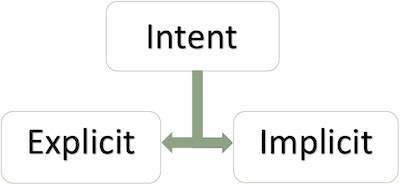
There are following two types of intents supported by Android

Intent

Explicit Intents

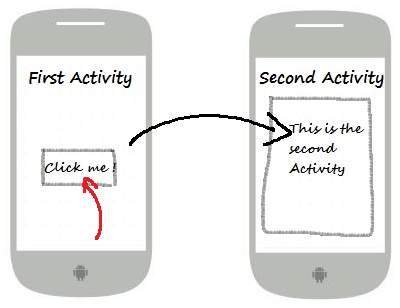
Explicit intent going to be connected internal world of application,suppose if you wants to connect one activity to another activity, we can do this quote by explicit intent, below image is connecting first activity to second activity by clicking button.

Explicit Intents

These intents designate the target component by its name and they are typically used for application-internal messages – such as an activity starting a subordinate service or launching a sister activity. For example −

// Explicit Intent by specifying its class name
Intent i = new Intent(FirstActivity.this, SecondActivity.class);

// Starts TargetActivity
startActivity(i);

Implicit Intents

These intents do not name a target and the field for the component name is left blank. Implicit intents are often used to activate components in other applications. For example −

Intent read1=new Intent();
read1.setAction(android.content.Intent.ACTION_VIEW);
read1.setData(ContactsContract.Contacts.CONTENT_URI);
startActivity(read1);